People have a tendency to leave things on every now and then, but the one thing they shouldn't leave on is their screen. This really applies only to those with desktops, unless of course your laptop is hooked up to an external monitor. Anyway, people leave their screen on for hours some times. When I say on, I don't mean as if they are playing a game or surfing the web, I mean just leaving it at the desktop and walking away. If the screen is not turned off, you could eventually induce screen burn upon your screen. What is screen burn? Well, screen burn is when what is left of the screen for long periods of time actually burns itself into the screen. When you turn your computer off, you will be able to see an outline of what was on the screen. Plus, if it is really bad, you can see it while you are working on your computer. Keeping your screen off, even if your computer is on, when you are not using is the best way to prevent screen burn. Just remember, turn it off unless your using it because a new one is quite expensive.
~Dave

Tuesday, November 30, 2010

Monday, November 29, 2010
Cyber What?
Today, as some of you may already know, is Cyber Monday. It is the first Monday after Black Friday, and all the deals online start today. Now, most deals are not that great in my opinion, most stores tend to cut more during Black Friday then Cyber Monday. However, you may find the occasional amazing deal that you have been looking for. Yesterday, Gamestop had some great Pre-Cyber Monday deals, and today they continue their great deals. Things are moving quick there, Borderlands Game of The Year Edition is already sold out. Make sure to check that out. Plus, if you are a PC gamer, Gamestop cut their PC game prices pretty low, almost 90% off some titles. You can check that out here. Steam is continuing their amazing streak of deals, cutting prices like crazy. Their deals have been going since last Thursday, but that is not to say they don't have good deals. There is only six hours left before they change the deals today, so get there quick. Places like Newegg and Best Buy, unfortunately, are not as low as they were for Black Friday. That is disappointing because both sites could give some really great deals, but choose not to. What did you find today that you bought? Was it worth it? Leave a comment below!
~Dave
~Dave
Sunday, November 28, 2010
Speeding Up Windows 7: Keeping it Fast PT2
This article is continued from Speeding Up Windows 7: Keep it Fast PT1.
Disable Search Indexing
Unless you use the search bar frequently, there is no need for your computer to index everything. By turning off indexing you will gain a lot of speed because your computer is not busy else where. To turn off indexing, click "Start" and type in the search bar "services.msc" and find the one that says "Windows Search" Click on that.
Turn off unused features
Windows has a lot of background features that are unused, and in the end just slow down your computer. We want those off. To do this, open up the Control Panel and select "Programs and Features". On the side you will see "Turn Windows 7 Features On or Off", click on that.

Gadgets off
In Windows Vista a program called "Gadgets" was added, which is essentially like widgets for Mac. The problem with Gadgets is that they lie right on your desktop, and that slows your computer down if you don't use the. To turn Gadgets off, follow the steps in the above to get the the Windows Feature On Off winndow. Once there, turn off Windows Gadget Platform and click "Apply".

Drivers up to date
Last, but not least, is keeping all your drivers up to date. Newer drivers can actually add performance to your computer. Since I built my computer, I know exactly what motherboard I have, and what graphics card I have, so I know what to search for when getting drivers. If you don't know, you can always google your computer that you bought and find out. Check for new drivers at least once every month.
That concludes part II of this article, I hope it helped you, if you know more ways feel free to leave a comment about it!
~Dave
Disable Search Indexing
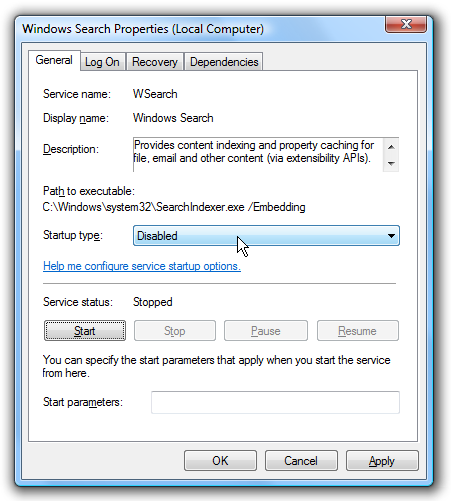
Unless you use the search bar frequently, there is no need for your computer to index everything. By turning off indexing you will gain a lot of speed because your computer is not busy else where. To turn off indexing, click "Start" and type in the search bar "services.msc" and find the one that says "Windows Search" Click on that.
The window you will get when you open Windows Search service
As you can see in the window above, you disable it by clicking on the drop down menu and choosing disable, then click "Stop" under Service Status.
Turn off unused features
Windows has a lot of background features that are unused, and in the end just slow down your computer. We want those off. To do this, open up the Control Panel and select "Programs and Features". On the side you will see "Turn Windows 7 Features On or Off", click on that.
In the window that appears you will see a bunch of folders, each with different things in them. You can now start unchecking the ones you don't want. For example, I unchecked Tablet PC, some games, and indexing services. Once done, click apply.
Gadgets off
In Windows Vista a program called "Gadgets" was added, which is essentially like widgets for Mac. The problem with Gadgets is that they lie right on your desktop, and that slows your computer down if you don't use the. To turn Gadgets off, follow the steps in the above to get the the Windows Feature On Off winndow. Once there, turn off Windows Gadget Platform and click "Apply".
Drivers up to date
Last, but not least, is keeping all your drivers up to date. Newer drivers can actually add performance to your computer. Since I built my computer, I know exactly what motherboard I have, and what graphics card I have, so I know what to search for when getting drivers. If you don't know, you can always google your computer that you bought and find out. Check for new drivers at least once every month.
That concludes part II of this article, I hope it helped you, if you know more ways feel free to leave a comment about it!
~Dave
Saturday, November 27, 2010
Speeding Up Windows 7: Keep it Fast PT1
In the past I have mentioned tid-bits here and there about how to speed up your computer. I did some intense research over the past few days and found there are small things you can do within Windows 7 to increase performance and speed. Most of these things also work on Windows XP.
Defrag
First thing you want to do is to defrag your computer once every couple of months. This helps to keep your disk information all sorted and tied together, no lose ends. You can read more about this in my previous article.
Aero-Off
Windows 7 comes with the very beautiful Aero Theme, which at the same slows your computer down immensely. By turning this off, you will gain a significant speed boost. To do this, click on the "Start Menu" and then right click on "Computer"--->Properties. In the new window that appears click on "Advanced System Settings". You will get a new window that looks like this:


Defrag
First thing you want to do is to defrag your computer once every couple of months. This helps to keep your disk information all sorted and tied together, no lose ends. You can read more about this in my previous article.
Aero-Off
Windows 7 comes with the very beautiful Aero Theme, which at the same slows your computer down immensely. By turning this off, you will gain a significant speed boost. To do this, click on the "Start Menu" and then right click on "Computer"--->Properties. In the new window that appears click on "Advanced System Settings". You will get a new window that looks like this:

Continue by clicking on the "Advanced" Tab and then click on Settings under Performance. In the box that pops up you will see options related to the Aero Theme. Click on the one that says "Adjust for best performance". When applied, all of the Aero Theme will be turned off and your computer will look like it is on Windows 98. Before closing that window, one more thing you should do.Click on the "Advanced" tab and in the first box, the one that says "Allocate System Processes", choose Programs and click apply. By now you should be seeing a much needed speed boost.
Explorer.exe
The explorer.exe is what manages control over your taskbar and desktop. We want to make sure it is running at the best speed so we get the best performace. To get to it, open up the Task Manager and click on the "Processes tab. Seen below:

Locate the process "Explorer.exe" and right click on it. In the menu that drops down you will see a choice named "Set Priority". Click on that and choose "Realtime". This will make sure that your taskbar is the main focus of the processor. If it sets the priority to "High", that is ok.
Power Performance
If you are on a laptop. I don't recommend changing this setting as you will have to charge more often.
Open up the control panel and choose "Power Options". You will now have a window that looks like this:

Select "High Performance" from the available options. Now, when I did this it worked the only problem was I had trouble putting my computer to sleep. So, I went and edited the configuration (Change Plan-->Advanced Options) of "High Performance" and under Sleep I turned off "Allow Hybrid Sleep".
Upgrading your Drive and Ram
If you have the money to spend, upgrading your internal drive and your ram will make a huge difference in speed. Upgrade your HDD to an SSD, more information can be found here.. SSD are much faster and will make a huge difference. Also, upgrading your RAM is very important. In my opinion, 4GB of RAM is the standard today. If you don't have 4GB, I suggest you upgrade to that first. You can always have more, just make sure to check how much your motherboard can hold. Mine, for example, can't hold more then 16GB of RAM.
Start Up Apps and Services
I have mentioned this before, having applications start up will slow down your boot time greatly. What I am going to add is how to disable ones you may not know are there. Open up "Run". It is located in the Accessories folder in the start menu. Once open, type "msconfig", this stands for Microsoft Configuration. You will get a window that looks like this:

Looks a little scary, I know, don't worry
Select the "Start Up" tab. In this tab you will see all the applications that start up when you start your computer. Go through unchecking the ones that you don't want. For example, I didn't want iTunes or Quicktime to start up, so I uncheckedt them. The less you have on start up, the faster your computer will load. Also, if you don't know what it is either google it or don't change it. Next, head over to the "Services" tab.There are many items here, and although it seems overwhelming, there are some in there that we don't need.. Only turn off the ones you know! In my case, I turned off Fax, iPod Services, Remote Registry, Secondary Logon, Remote Desktop Configuration, Tablet PC Input Services, Parental Control, and Remote Desktop Services. I went and looked up some of these before I turned them off. Once you are done you can hit Apply, but don't close the window just yet, we will need it in our next step.
Boot Up
While still in msconfig, click on the Boot tab.There is a small section that says "Time out", it is most likely set to 30. Set that to 3, this will make your boot much faster as it times out quicker.
Keeping it Clean
Other then Defragging, mentioned above, we have temporary files that need to be dealt with. Open up "Run" again and type "cleanmgr.exe". An application will then open related to disk cleaning. It may ask you to select a drive, select the one with your OS on it, most likely the C: drive. It will then scan your computer for what needs to be emptied.

cleanmgr.exe window
Now, from here we want to select everything except "Setup Log Files" and the System/Per User Error Reports. Once done click "OK" and it will proceed to clean out these files. You will want to do this at-least once a month to keep you computer running fast.You can also use google as there are applications that can assist you with this, one example being CCleaner.
This will end part 1 of this article, part II will be out tomorrow. I didn't want to make it a huge wall of text, that is no fun. Check back tomorrow for part II!
~Dave
Friday, November 26, 2010
The Sale Have Begun
Today marks the beginning of the holiday shopping season. Many stores are slashing their prices to get buyers to spend their money. I personally don't go out, but stay home and look for the online deals. Best Buy has some really good prices, especially hard drives. I bought a 1 TB (terabyte) Caviar Black HDD for almost have the normal price. Then there is Xbox Live putting out some nice deals, I went and purchased Splosion Man because the price was so good. I was disappointed to say the least with the deals that came from Newegg, Apple, and Mircrocenter, I was expecting lower prices from them. Tiger Direct on the other hand has some pretty decent deals, although I am not purchasing anything from them at this time. I checked Games For Windows Live, but they seem to have no sales going. GameStop is running some great deals, so make sure to go check that out. Last, but not least, is Steam, which is giving some amazing deals on games. All these deals are great, but I almost forgot there will be more on Cyber Monday! This Monday, the one following Black Friday, is known as Cyber Monday where many of the great online sales happen. So, although many of these stores have Black Friday deals, they may have some better deals on Monday. That is not to say you should not buy what you want now.
~Dave
~Dave
Subscribe to:
Posts (Atom)