Showing posts with label Computers. Show all posts

Friday, September 16, 2011

Windows 8 Developer Preview is Out

With the recent release of Lion, the tech world now turns its head to Microsoft. They are expecting something just as good/bad depending on how they liked Lion. Microsoft was quick to unveil Windows 8. Windows 8 is actually like Lion in a huge way, it combines the mobile aspect of the Windows Phone, and the desktop aspect of Windows OS. This is the same thing Apple did with Lion, but combining the mobile and desktop aspects of the Mac and iOS. The Windows 8 Developer Preview dropped this week for people and developers alike to try out.
The new start menu in Windows 8

The Lock Screen that is used for Windows 8
What makes Windows 8 so different is that Microsoft is really gearing it toward mobile users, which in my opinion will anger the PC community greatly. Even though you are not required to upgrade, there are many improvements that make it worth doing so. Things like hardware accelerated applications, and a build in firewall/antivirus system are use a few. If you have some time and want to try it out, you can make a 30-40 GB partition on your drive and install it. See if you like it before it comes out.

~Dave

Monday, September 12, 2011

The Unfortunate Bottleneck.

I believe this is it, then to a long drawn out battle between my laptop and me. I didn't want to accept it at first, I didn't want to believe that the problem was the drive, but it was. Ever since I made the disk drive upgrade to my Macbook, I was having consistent freezing, disk i/o errors, as well as data underrun error being reported in the console. I would really like to thank Scott and Mike at iFixit for trying their best to help me. They sent me a new caddy, even a new drive adapter. And even though that did not fix the problem, the fact that they made the attempt to fix it really is amazing. They are the best customer service I have ever dealt with in a long time. I had never dealt/bought from iFixit prior to this, but that didn't matter.  No matter what, they were determined to aid me with my issue.


So what was the problem in the end? The problem is that the Caviar Black 7200 RPM I bought was too fast. Simply put, when the data had to be converted from SATA to ATA, the disk would be moving to fast for the computer to handle. This would cause the data to "bottleneck" in the conversion area, thus slowing down my computer. How am I so sure this was the issue? To find out, I took an old 5400 RPM drive that I had, which is failing but still works, and popped it in the bay. I am writing to it, reading from it, and not seeing as many disk i/o errors in my console. There are still a few showing up in the console, but they are not enough to slow the computer down. Because of this, I now have to make another transaction. I will now have to go to Amazon and request an exchange for a slower Caviar Black drive, as well as pay the difference for the drive. This just goes to show that you can't rule out the most obvious option right away.

~Dave

Monday, September 5, 2011

Problems Persist

Since my second hard drive was installed, I have been issues backing up to time capsule. I shouldn't get any issue, but for some reason problems are arising. I attempted a backup last night and after about 6 GB of backed up information time machine stops, says there is a problem, and then says if the problem persists to repair the disk. At the moment I am repairing my time capsule sparse bundle in hopes that it will fix the issue. This isn't the first time I have this issue, it happened last week after I installed the hard drive originally. I am guessing it has something to do with the second hard drive being in the computer. I am not very good when it comes to time capsule, and since I don't want to not be able to backup I think I will call Apple on this one.

~Dave

Tuesday, August 30, 2011

Tell Xcode 4 to Put Its Junk Elsewhere!

With Xcode 4 being distributed through the Mac App Store, the process was streamlined to make it easier to install. In my opinion it is way more annoying. Xcode just puts itself in the root directory without telling you it will be there. If you know it will be there from prior Xcode installations, then you know how big the files are. A total of almost 7 GBs of data are put there. With my SSD, I can't have 7 GBs of information sitting there, it is just too big. So how can you tell Xcode where to put its stuff? Remember when I said Apple stream lined the process to make it easier? Well, what they really did was sugar coat the installer. If you go to the Xcode installer file, right click on it, and click "Show Package Contents" you will see what is inside. What we want to open is the "Xcode.mpkg". This file is located in Contents -> Resources. If you run this installer it will walk you through installing Xcode like any other installer. Plus, when you get to the part where you are asked about installing the Xcode files, you can use the drop down menu to choose where to install the Developer Tools. See image below:
After that, proceed as usual with installing Xcode!

~Dave

PS: Lack of updates was due to preparation for the hurricane.

Sunday, August 7, 2011

Xcode and Moving Files

Yesterday I noticed that Xcode was not recognized as "Installed" on my Hackintosh due to the fact that I had moved it to another drive. So, as I should have done originally, I created a Symbolic Link. However, it still was showing up as "Installed" in the Mac App Store. Then I remembered that my version was outdated, so what I did was I re-downloaded the installer and ran it. I was overjoyed to see that the installer recognized the symbolic link, and immediately went and updated the files. I then deleted the installer and checked the Mac App Store. To my surprise, it was recognized as "Installed"! Hopefully I have no issues down the line, but as of now this is great since I didn't want to keep a 10 GB developer kit on my SSD.

~Dave

Wednesday, August 3, 2011

How much RAM can your Mac hold?

Today I will be performing a RAM upgrade for an iMac, mid 2007 version. Now, usually RAM upgrades can be very annoying, especially on Macs where you needs a certain type of RAM, as well as a certain amount. On PCs it is not so annoying as you can put any type in, just has to fit the socket, and you can usually have upwards of 8GB of RAM. Older Macs, like the one I am performing the upgrade on, can only hold about 4GB of laptop RAM. That is one of the reasons the iMacs are so thing, because they use laptop RAM instead of desktop RAM. So how was I to figure out the speed and type of RAM to use? Well, one way would be to use Crucial.com, and search out my RAM using their special RAM finder. Or, in Lion, I could go to "About this Mac" and find out. That is what I did.
From the example above, you can see what type of RAM is needed. In this case, it is two sticks of 667 Mhz DDR2 SDRAM. However, if you notice in the bottom right corner, there is a button that says "Memory Upgrade Instructions". If you click on that it will take you to an Apple support page which not only tells you how to upgrade your RAM, but also the maximum amount you can put in your computer. That is how I found out how much I needed, and then I went bargain hunting across online dealers to find the right RAM.

~Dave

Tuesday, July 26, 2011

Why I am Waiting for a Windows SSD

In recents months SSD prices have been dropping to the point where I am considering buying one for Windows. I came very close to buying some of them, but then I strayed away. The reason being is that all the current drives that are SATA III are having issues with Windows. Many of the newer drives are having problems where they randomly get a Blue Screen of Death. This is a huge no buy point for me, as I don't wish to deal with any issues. I keep looking, but at the moment there only seems to be one drive that doesn't have any issues, and that is the Patriot Wildfire. With no issues, and comparable speeds, it is the drive worth buying. However, with a price point of $300 I am not ready to buy that yet. For 120GB I would like less then $200 to be spent on the drive. Until these issues are fixed, or this drive drops in price, I will be waiting to buy a SSD for Windows. Plus, I have no issues at the moment with my 1 TB Caviar Black drive.

~Dave

Monday, July 25, 2011

Dell Has Impressed Me

A while back I mentioned the new laptop I helped my friend pick out. Earlier this week it arrived, and as of yesterday we opened it. The Dell XPS 17 that he ordered performed much better then I expected to be honest. Everything was pre-installed, including all those annoying dell drivers, After booting up, we made sure to remove the annoying Dell drivers, as well as Mcafee and Roxio Creator. Freed up quite a bit of space.  We were a little disappointed with the fact that Steam was suppose to come pre-installed at no extra charge, but it would seem Dell forgot to do that. It only took us about half an hour to get the computer to where we wanted it to be. We installed the normals: Google Chrome, Pidgin, Skype, and Steam. Then, we updated the graphics drivers, and updated Windows itself. I usually use Microsoft Security Essentials, mostly because it is free and does a great job. My friend prefers to use Malware Bytes. I have never used this, but he says it is lighter (takes up less space) and does the same thing as MSE. In my opinion, what ever floats your boat. 

His specs were good, coming in with an Intel Core i7 processor, Nvidia 555M 1GB graphics card, 6 GB RAM, a Samsung solid state drive, and a half terabyte Toshiba. His boot time was about 12-15 seconds, which is still really fast. I have to keep reminding him that he has to install more stuff to the hard drive and less to the SSD as the SSD will get slower the more it fills up, as well as die quicker. The computer only really got hot when we started gaming, but that was no big deal as the ventalation took care of most of the heat. Overall this is a great product, and I am quite surprised at how well it performs considering Dell's track record. I would recommend this computer to someone looking to an affordable gaming laptop.

~Dave

Sunday, July 24, 2011

Creating a Symbolic Link

This walkthrough was a little bit complicated for yesterday's SSD setup guide, so I made a separate post for this specifically. If you are running a computer with an SSD and an HDD, obviously you want to keep the larger files on the HDD. However, certain files and folders are needed by applications so that they can run properly. You can't just simply move those folders because then the application won't run properly. Certain apps such as Steam, iTunes, even iPhoto, all store information in your home directory. This is fine on an HDD, but on an SSD where you have minimal space this is not ok. So, how do we move these files? We have to create what is called a Symbolic Link. What this will do is make the OS "think" the files are in the right place, when really you are directing it to the HDD instead of the SSD. This does use terminal, so if you are not comfortable with using terminal I suggest you get comfortable soon, or deal with the space issue you have another way.
1. Find the folder you would like to move. I am going to use my iTunes Music folder located in /User/*insert your username here*/Music/iTunes

2. Copy that folder that you have chosen anywhere you want on your HDD

3. When you are done copying, open up terminal. We want to delete the previous folder, so type:
cd /User/*insert your username here*/Music/iTunes
That will make sure terminal knows what folder we are in. Next type:
sudo rm -rf iTunes Music
It will ask you for your password, and then it will delete your iTunes Music folder from your SSD.

4.Now we have to create the Symbolic Link. Before moving forward, make sure terminal is still in the folder iTunes since that is where we are making the link. If you are doing this for something else, just make sure that you are in the folder that the original file (the one we just deleted) was in. Here is the difference between being in a folder and not being in a folder in terminal:
Notice one says desktop and the other doesn't.
Now, while in the folder type the following into terminal to create the Symbolic Link:
ln -s /Volumes/*Name of hard drive you moved the file to*/path/to/the/file
For me, I would type ln -s /Volumes/Applications/iTunes Music
All we are doing here is telling the computer to make a redirect folder pointing to where we moved the folder to.

If everything went as planned, then you should have something that looks like this:
Notice the folder with the arrow. That is a symbolic link
So go ahead, and give it a try. Best of luck to those you want to do this. Took me a couple of tries to get it right.

~Dave

Saturday, July 23, 2011

Optimizing an SSD for Lion

TRIM
First and foremost, the one thing you must do after installing Lion is run Trim Enabler. What this does is enable the trim feature for your SSD if it is a non-Apple certified one (e.g if you bought something like an OCZ or a Corsair drive). Without trim enabled, you will wear down your SSD faster because the SSD will have to re-write information a lot more. What trim does is when you delete a file it is completely removed from the memory block. However, without trim, the SSD will think the file is not in the memory block, even though it still is. That means that when a new file has to be written, the no trim SSD will have to delete the old file and write the new one, where the trim SSD just has to write the new one.

HIBERNATION OFF
When OS X goes to sleep normally, it uses hibernation mode. This is ok on a HDD as you have a ton of space. However, on an SSD you don't have a ton of space and every byte counts. When hibernation mode is enabled, your computer will write all the contents of your RAM to your SSD. That means if you have a total of 8 GB or RAM, it will be written to your SSD. That is a lot of space to lose to RAM. We want to turn this off, so go ahead and open up Terminal.
Note: The $ sign is not required as part of the code.
1. In Terminal type the following:

$ sudo pmset -a hibernatemode 0
This will then turn off hibernation.
2. Next we have to remove the old file (you may not have a file to remove if you just installed Lion and haven't put your computer to sleep yet). To remove the file type into Terminal the following:
$ sudo rm /var/vm/sleepimage
And that is it, you will now have no hibernation on your computer!

HARD DRIVE SLEEP
By default OS X enables the command to put your hard drive to sleep when inactive. However, SSDs don't need to be put to sleep. Some even are known to freeze up when put to sleep. To disable this, simply go to System Preferences->Energy Saver and disable it. If you are on a laptop, make sure to disable it for both with and without the power adapter.

SUDDEN MOTION SENSOR
Another feature that is Hard Drive specific. This feature prepares a HDD for impact if it detects the computer falling suddenly. The features will disengage the hard drive head and stops the disks from spinning. With an SSD however, there are no moving parts, so this command is useless. To turn it off, type the following code into Terminal:

sudo pmset -a sms 0

DISABLE SPOTLIGHT
If you don't search your computer a lot, then you have not reason to let spotlight index your computer. Simply turn it off by typing the following into Terminal:
sudo mdutil -a -i off

I hope these tips help you out there who wanted to optimize your SSD for Mac.

~Dave

Monday, July 11, 2011

Building a Laptop

Image from Dell's website.
A friend of mine is getting a new laptop for which he would use for work, and maybe a little bit of gaming. He had a price range, and after hours of searching with him we hit the laptop that would fit the price range. The laptop was the Dell XPS 17. Now, as a precursor I was not so fond of allowing him to buy a Dell. See, when I used to own a Dell, they were horrible. However, according to my friend, dell has really upped their quality in recent years, and have also been named #3 in customer satisfaction.

So what were some of the items my friend was looking for? Well, for starters, it had to have an Intel Core i7 processor. Next, it had to have Nvidia graphics, he doesn't like ATI (not to mention the fact that they have driver issues). If possible, he wanted a SSD boot drive and a Hard Drive for storing information. Finally, it had to be affordable and portable. The XPS met all the requirements while still being affordable. It doesn't compare with something like Origin or Falcon Northwest, but for the money you will get a very decent laptop that will probably last you 3-4 years. 

~Dave

Thursday, June 9, 2011

Apple Announcement Roundup Part 2/3

OS X Lion


Nothing particularly new has been announced since last summer. Lion is still coming with multi touch gestures, mission control, launch pad, versions etc. It was however priced at $30 and will be released this summer for download only through the App Store.


Let's talk about some big features though. Mission Control will be coming out with Lion, allowing you to be more organized with your applications. It is essentially a much more glorified version of spaces. It can be activated with multi touch gestures, unless you have a computer which doesn't support that in which case you just have to map a hot key to it or something. Mission Control is sort of like a "central hub" so to speak.

Then of course there is Launch Pad, a simpler way to open applications. Launch Pad looks and acts like an iPad, your apps are shown and you click on them to launch. In addition, when you download an app from the App Store, it goes straight to Launch Pad. Uninstalling also occurs from Launch Pad, just click and hold until the icons wiggle. Click on the "x" to uninstall.
Next, and one of my favorites, is called Resume. Resume allows you to shut off your computer and turn it back on with all your applications where you left them. It allows you to "resume" work with out having to re-open everything.

Also very neat is the addition of Versions. Versions is like a more exact Time Machine. It allows you to select and restore a certain version (older save) of a file which you have been working on. For example, say you are working on a presentation, but you have made a couple mistakes a long the way, and you have saved those mistakes. To undo all them would take too much time, but with versions you can travel back to an older save file and restore that, overriding the one with all the mistakes.

These are just some of the big features being added to Lion, for a full list of features and what they do you can visit apple.com

~Dave

Friday, June 3, 2011

Get Ready For the New Apple

Image from Macrumours

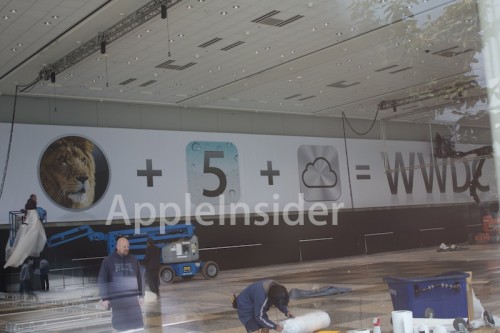
As expected, Apple is ramping up for their annual WWDC (World Wide Developer Conference) 2011. As seen from the signs being put up, it would seem the rumors are true. To be announced this year will be OS X Lion, the brand new operating system from Apple, iOS 5, the brand new mobile operating system from Apple, and what looks like iCloud.

 iCloud is what is rumored to take the place of MobileMe. Again, as far as rumor goes, iCloud is going to be $25 a year, which is awfully inexpensive and worth paying for. In addition, iCloud will include the ability to hold all your songs AND movies. This would be a huge move on Apple's part seeing as Google and Amazon both tried to beat them to the gun with a cloud service. 

Next, there is Lion, which we don't know much about (that is of course assuming you haven't read any of the leaked information on the internet). Lion will not only bring some amazing new features, but it will also utilize TRIM for SSDs, a necessity at the moment when using an SSD. Lion is suppose to be a blend of iOS and OS X, so we will see how that goes over. I for one am skeptical on whether or not people will like the idea. Hopefully, Lion is not put at a price points that is more then Snow Leopard was. Snow Leopard was well priced, and I believe if Apple does this again it would definitely be good for them.

Finally, as far as iOS goes, I am hoping it brings some major changes. First, I would like to see more voice commands. One in particular I would like to see is being able to read off your text message and having the phone compile it for you. In addition, I would like to see a brand new messaging system, one with more options when you get a message. Off the top of my head, I can't think of anything else I might want changed. I am sure what ever Apple does it will be for the better.

~Dave

Wednesday, May 25, 2011

Still Working on The Hackintosh

When I can find the time, I try and fix the hackintosh as best I can. Right now I am posting on Insanelymac and TonyMacx86 to try and help fix the freezes occurring with the GTX 460. I don't make any kexts, but I do attempt to try them out for people. Although I have full resolution, I don't have full graphics acceleration. I know this because when I attempted to play Half Life 2, but game crashed and an error popped up regarding the physics engine. Now, I could be lazy and just switch out my 460 for my 9800 GT when ever I boot into Mac, but that is just a pain. I would like to be able to consistently use the better of the two cards. With no fix in site, it can only be hoped that Apple will add fermi support. Unfortunately, at this time, it doesn't seem like Apple will be doing that. With each refresh in the past couple of months Apple has chosen AMD, formerly ATI, over Nvidia. One can only hope the switch back.

~Dave 

Monday, May 23, 2011

Making the Switch

So last summer you may remember that I switched out the HDD in my iMac G5 for an SSD to speed it up. Well, that was partially a bad idea. You see, iMac G5 can run on Leopard only, which means no TRIM support. TRIM enables the SSD to last longer because, put simply, it makes the SSD work less when deleting/writing files. Because of this the SSD will not die as fast as it would without TRIM. So what I did was I took the SSD out of my G5, and popped it into my Macbook. Then took the 250GB 7200 RPM drive and put it into the G5. Reinstalled all my system, but I am yet to retrieve my important files yet. Luckily I have a time machine backup just in case. After reinstalling Snow Leopard, I upgraded to 10.6.7 and immediately enabled TRIM with a third party utility known as TRIM Enabler. Although I now only have 60GB to work with, I am cutting down on what I need and don't need on my computer.

Thursday, May 19, 2011

Save When You Switch

Did you just switch from Windows to OS X? If yes, here is one of the first applications you will want to buy from the Mac App Store. It is called Parallels Transporter, and it allows you to access your Windows files from your Mac. Best part, it only costs $1 right now. Of course, you could pay someone to do this for you, or take it to the Apple store. However, this app will save you time and money. Why get bogged down trying to put stuff on flash drives and sort it all out? This app does the work for you. Now, this isn't to say you aren't going to have to go through your files, you will, but this just brings them over in a simple manner. I wish they had an app like this when some of the people I know switched, they would have loved it. Check it out, it is only $1 and if you don't like it you don't have to use it.

~Dave


Monday, May 16, 2011

Lion has no Fermi Support

Well this weekend I attempted to try and install the developer preview of Lion on my Hackintosh. I had a spare drive laying around so I didn't see why not. Turns out I can't even get past the post screen as long as my MSI Hawk 460 is still inside the computer. I would have to switch it out for my 9800 GT. Seems like Apple is leaning towards Raedon more and more, which is disappointing because Nvidia is a very good company. I am still reading around to see if there is a way to install Lion and switch out my card. Who knows, maybe things will change between now and this summer when Lion is released. I really hope they do, it would be a good move on the part of Apple to support Fermi cards. I am going to attempt to install with the 9800 GT in place, and then switch it out to the Fermi card, hopefully it will work. I may not get full acceleration at first, but it is better then nothing.

~Dave

Monday, May 9, 2011

Microsoft is Really Trying


Over the weekend I happen to stumble upon a new Microsoft advertisement. Usually I don't care about them, they don't have anything of interest. However, this one is funny and strikes a good points. Buy a PC and go to Hawai is what Microsoft is pushing now. They say that with the money you save buying a PC, instead of buying a Mac, you can go to Hawai and enjoy your new laptop. The ad is not without its flaws. It of course states things like MobileMe is only used for online backup, which is not entirely true. It also tries to draw comparisons between different sized hard drives as compared to a solid state. Again, not quite the comparison you want to be drawing, solid states are much faster. Another notable difference is that all the Macs offer matte display options, where as none of the PCs offer this option. I give props to Microsoft, they are really trying. In my opinion though, they just haven't hit that one ad that will have a last effecting. Take the first iPod ad for example, it was simplistic and to the point. This is what Microsoft should be aiming for in their ads.

~Dave

Wednesday, May 4, 2011

iMac Refresh

Images provided by Apple.com


As expected, a new line of iMacs was released yesterday. The new line came with two of the things rumored to come with it. There is a brand new processor, as well as the addition of thunderbolt. But wait, there is one more thing that snuck its way in! A brand new Raedon 6970 for the 27 inch top of the line iMac, a Raedon 6770 for the bottom 27 inch and top 21.5 inch, and a 6750 for the low end 21.5 inch. This graphics boost is a much needed, and much welcomed, addition to the iMac family.

In addition, the brand new Sandy Bridge chipset has been added as the processor. These processors are up to 3x faster that the core 2 duo that was in the previous iMacs. Plus, they come with turbo boost 2.0, which allows the computer to change the clock speed of the CPU when needed to as to boost performance. Theses CPUs bring a much needed boost to the desktop line, putting them on par with the new line of Macbooks.


And finally, there is the addition of not one, but two Thunderbolt I/O ports. This will not only give you the option to hook up tons of extra space if you want to, but you can also have a three way display done through the mini DVI ports. That means you could purchase a 27 inch iMac, two 27 inch mini DVI LCD screens, and hook them up to have one giant screen. That would be great for gaming, as well as video editing.


That two refreshes down for Apple, but there is one product that is hiding. One product that has not been refreshed yet. That is the Mac Pro. It will be interesting to see how long it is until the Mac Pro is refreshed.

~Dave

Thursday, April 14, 2011

Sata III


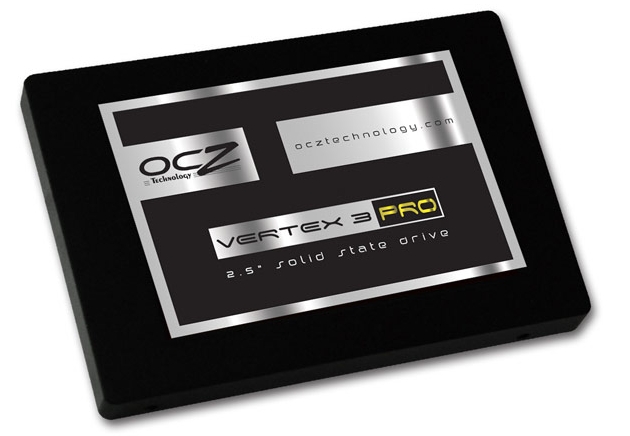
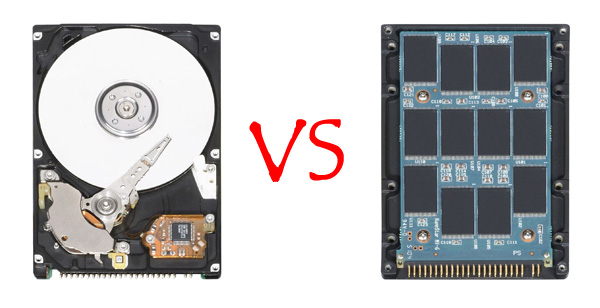
For some time now I have been considering upgrading to an SSD (Solid State Drive). If you don't know what a solid state drive is, have a look at my article on solid state drives vs. hard drives. So it would seem real simple to just go out and buy an OCZ Vertex 2 and be done with it. However, there is one thing which is stopping me. SSDs are now moving to 6GB/s SATA, also known as SATA III. The difference between SATA III and SATA II are the speed, SATA III is much faster. The reason I don't buy SATA III drives is because I don't have any SATA III ports on my motherboard. I can't upgrade my motherboard because I am running a hackintosh, and because my Intel chip is an LGA 775 socket. Support for the LGA 775 socket is going away fast because it is old technology. So what do I do? Well, thanks once again to Reddit I have a solution. I asked Reddit if there was a way I could get these SATA III ports that I needed in some sort of expansion slot or something. As I was hoping, there is a way.

I was shown this Highpoint expansion card. This card allows me to have two SATA III ports on my motherboard. Well, not exactly on it, it is an expansion card. My hope is that in the future I will be able to buy an OCZ Vertex 3 SSD along with this expansion card. This would allow me not only to use the Vertex 3, but get close to the maximum speed I can out of it. I might even get another Vertex 3 when Lion comes out since it supports trim. These are just plans for the future, hopefully they will come true. If I had the money for this stuff right now, I would probably get those items.

~Dave